Quickstart
A first analysis in each interface. They share one engine, so results agree; the desktop app and an AI agent also share the same saved notes.
In a browser
- Open binfera.io.
- Pick one of the samples, or drop a file on the page. The file is read by the page and is never uploaded.
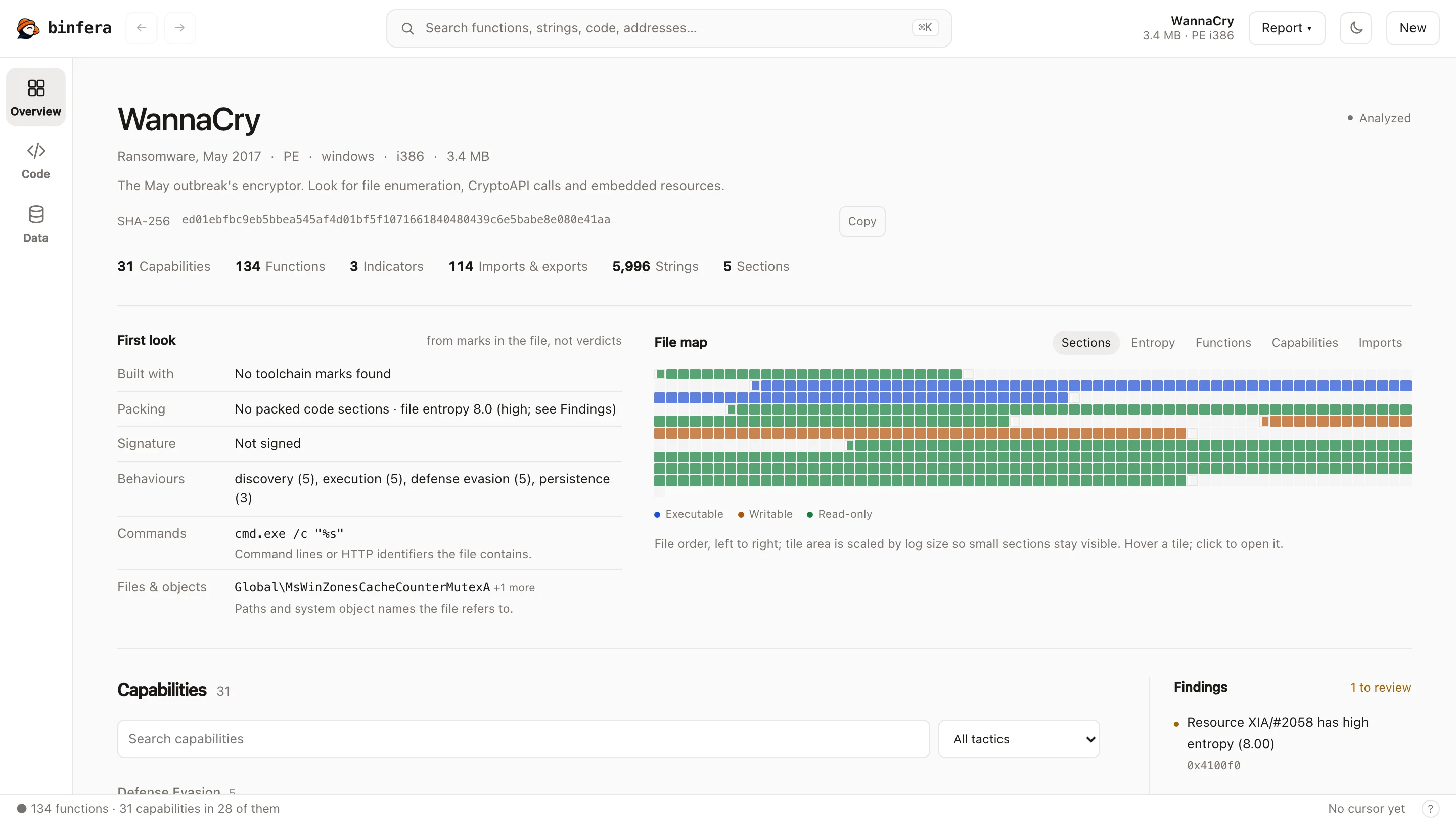
- The overview lists the file's capabilities grouped by ATT&CK tactic. Select a capability to jump to the functions that implement it.
- In a function, switch between decompiled C, assembly and the control-flow graph.
To compare two builds, choose Compare two files on the landing page and drop both.
Desktop app
- Install the desktop app and open it.
- Choose Choose a file or drop one on the window.
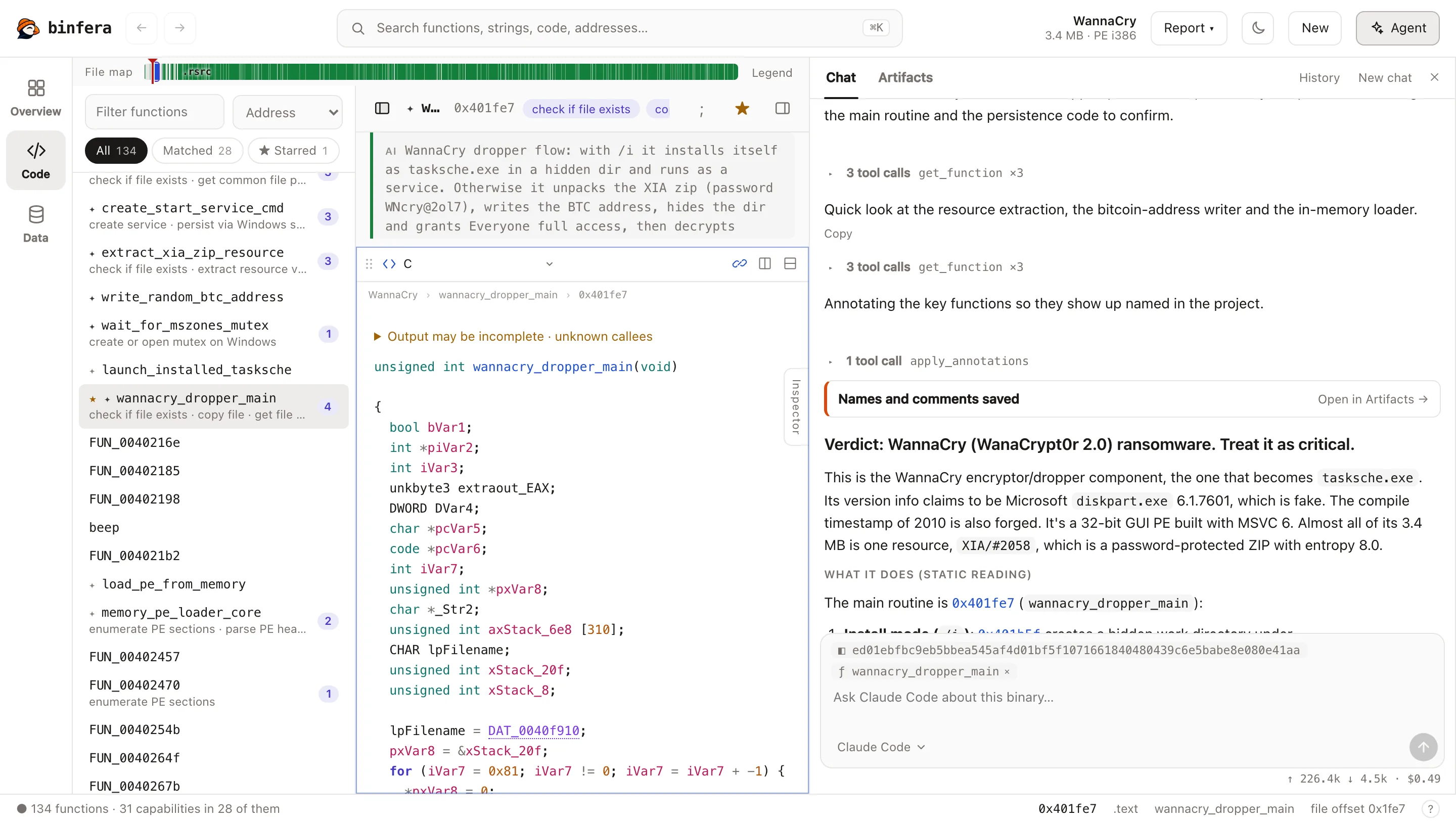
- Rename functions and add comments as you read. They are saved and come back when you reopen the file.
- To bring in an AI agent, click Agent (top right, or Cmd/Ctrl+J). If Claude Code or Codex is installed and signed in, the app runs it for you: pick a request such as Triage this binary or type your own. Its names, comments and reports show up in the views as it works.
Command line
After installing binfera:
binfera sample.exe                                   # capabilities, as a readable report
binfera sample.exe -j -q | jq -r '.rules | keys[]'   # capabilities, one per line
binfera sample.exe --decompile-all                   # every function as C, one JSON object per line
binfera diff old.exe new.exe                         # exits 1 when the builds differ

JSON output, exit statuses and baselines are covered in the command-line guide.
AI agent
Register the MCP server with your agent, using the full path to the binary:
claude mcp add --scope user binfera -- ~/.binfera/bin/binfera mcp
codex mcp add binfera -- ~/.binfera/bin/binfera mcp
Then ask in plain words:
Open
sample.exewith Binfera and write a full analysis report.
Everything the agent saves goes to a local project database that the desktop app also opens, so you can review its work there. Every agent run can be undone. See the MCP server guide for the tools and limits.
Handling malware safely
Binfera only reads the file: static analysis never runs it. The risk is in how you store and move samples. Keep them in a dedicated folder or virtual machine, keep the customary password-protected archives until you need the file, and do not double-click them.